
AITools.Move from a rough input to a usable result.
Five focused AI tools for invoices, chat, images, video and landing pages. See the exact input, output and handoff for each one.
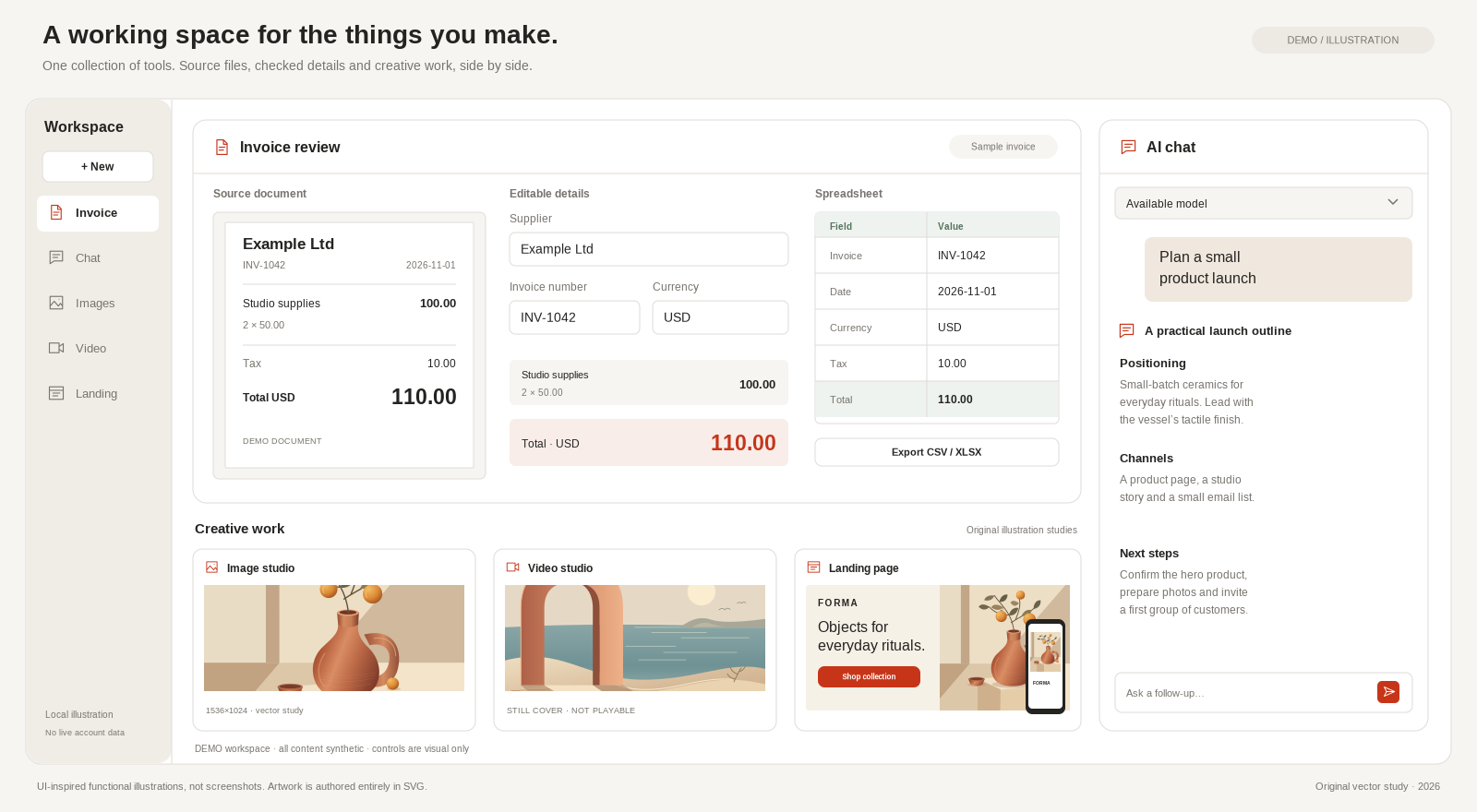
Choose the result you need.
Each tool explains what you provide, what you receive and where the work happens. Review generated or extracted content before you use it.
Turn invoices into checkable tables
For bookkeeping and expense preparation when invoice details need a second look.
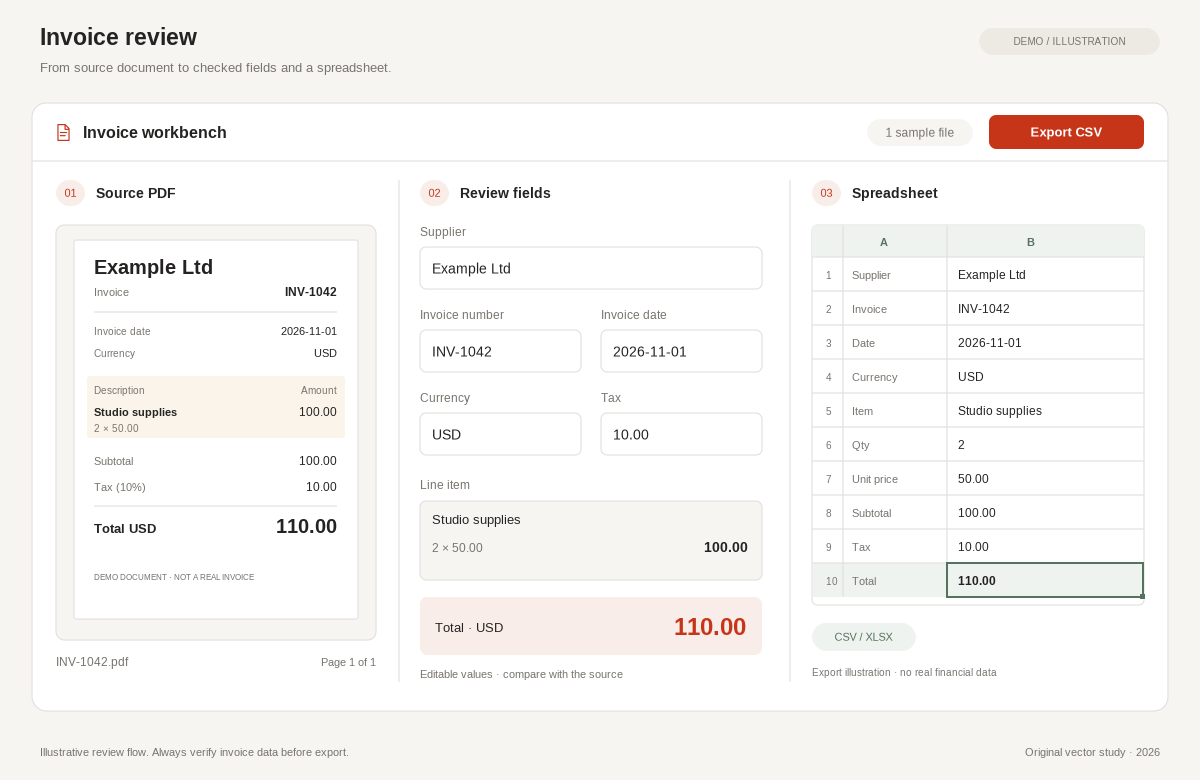
- You provide
- A PDF or image invoice from a webpage, or selected local files in the workbench.
- You receive
- Editable supplier, invoice, date, tax, currency and line-item fields, with Excel or CSV export after review.
Turn questions into clearer next steps
For research, drafting and thinking through a task with a model you can use.
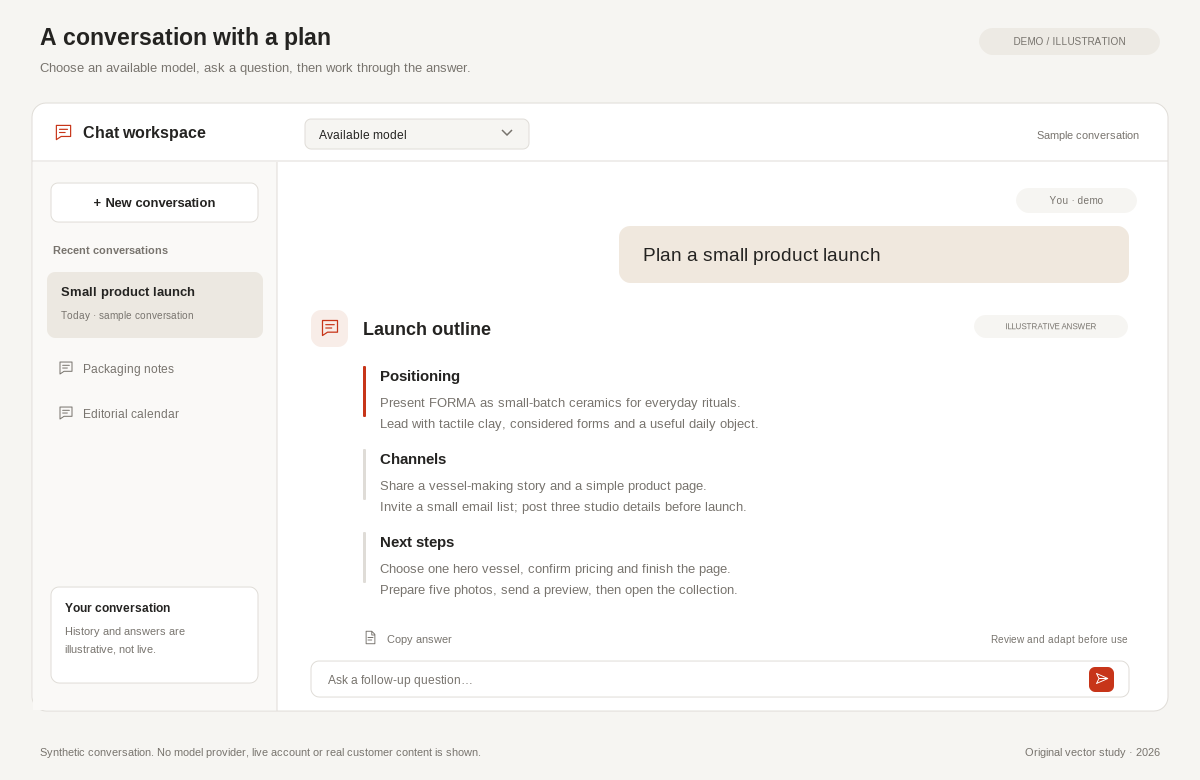
- You provide
- A prompt or conversation, plus an available model and usable account API key.
- You receive
- A model response you can read, refine and continue in the chat workbench.
Turn a visual idea into downloadable images
For exploring a visual direction, mockup or image concept from a written brief.

- You provide
- A prompt, an available image model, image size and number of results.
- You receive
- Generated image results in the workbench, ready to review and download.
Turn a short brief into a video task
For testing a motion idea or preparing a short generated video for review.
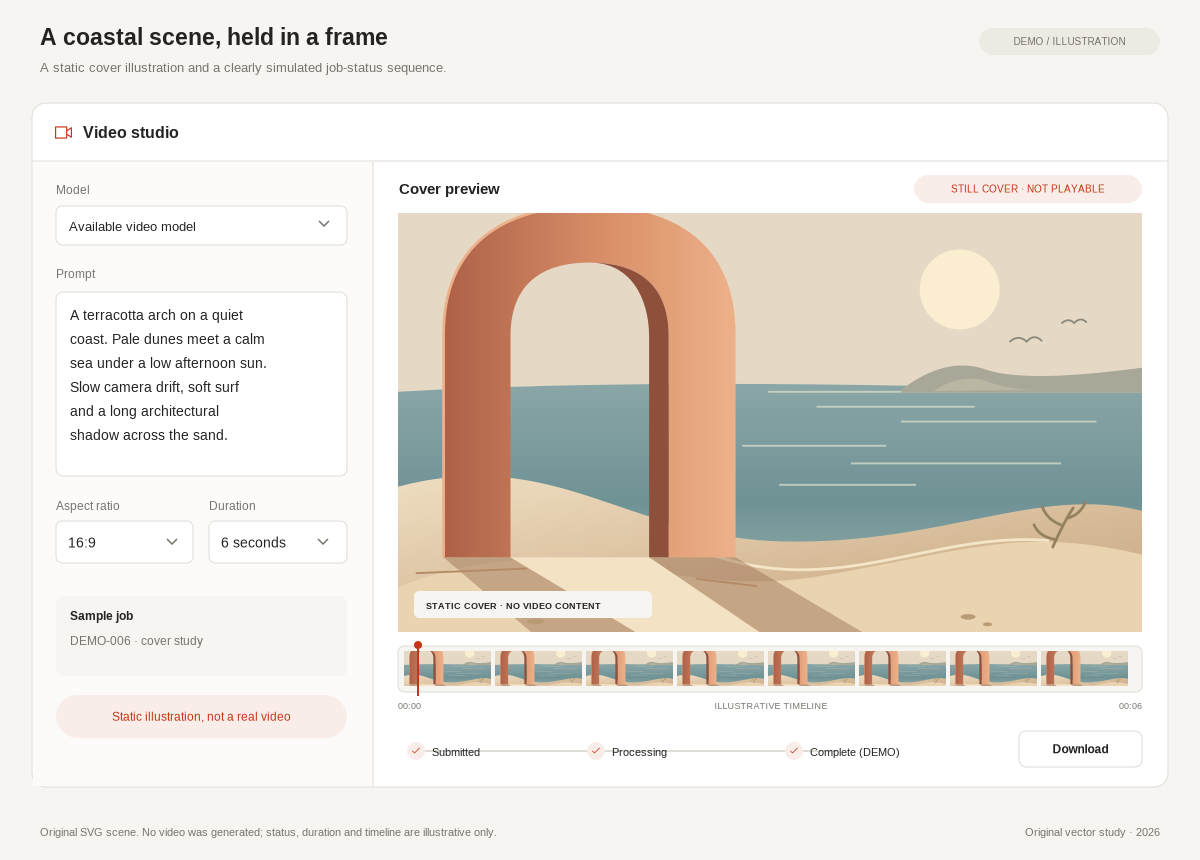
- You provide
- A video prompt, duration, aspect ratio and an available video model.
- You receive
- A tracked video task with a player and download action when the result is ready.
Turn a product brief into a previewable landing page
For shaping a first page direction before review, editing or publication work.
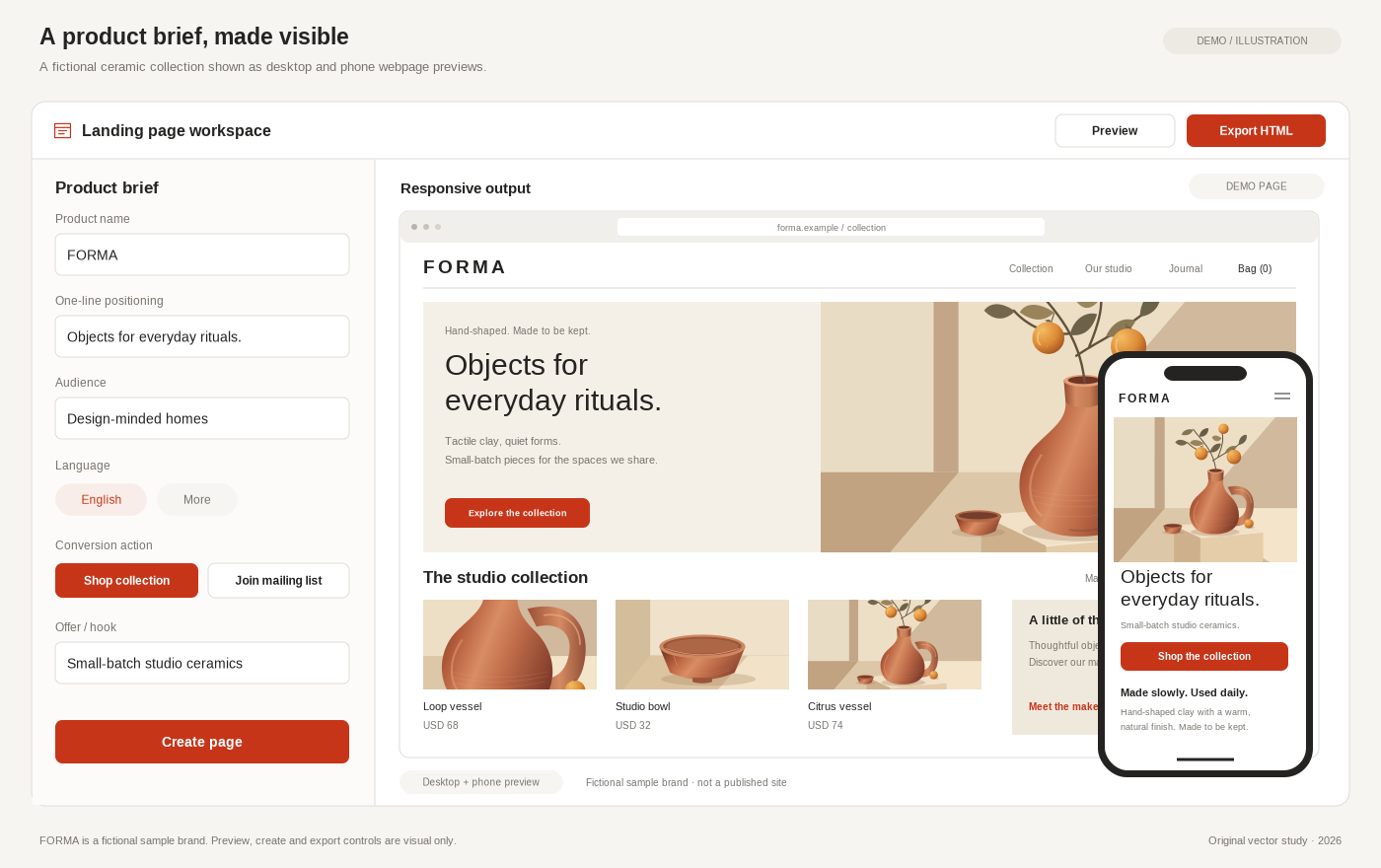
- You provide
- A brief covering the product, audience and style, with desktop and mobile preferences.
- You receive
- A desktop and mobile preview plus downloadable HTML for review and further use.
A small extension for finding and handing off files.
The browser extension helps you discover webpage attachments, collect an invoice and select local files. It opens the right workbench for the rest of the task.
Example Ltd
INV-1042 · 2026-11-01

Invoice to Excel
Find page attachments or select multiple local files, then hand them to the workbench.
Select multiple local files for import.
Open invoice workbenchBahasa Melayu · Bahasa Indonesia
What the extension does natively
Use the side panel or popup to discover webpage attachments, collect an invoice and batch-import local files. It can also open the chat, image, video and landing-page workbenches. It does not provide a full editor or store your account or API tokens.
What continues in the workbench
All invoice OCR, consent, full correction and Excel/CSV export happen in the workbench. Chat sending and all image, video and landing-page generation happen there too, using your account API key, model permissions and balance. Landing-page work also needs the existing service.
The invoice flow is in local testing. It has not been released in the Chrome Web Store.
- 1Find an invoice on a webpage.
- 2Find the relevant attachment.
- 3Select multiple local files for import.
- 4Review and correct everything in the workbench.
- 5Export the checked result.
Start with a reviewable workflow.
- 1
Sign in and check access
Sign in, confirm the model you need is enabled and check the relevant account allowance.
- 2
Submit with consent and clear input
For invoices, consent before processing. Then provide the prompt, files or brief the tool asks for.
- 3
Review, then download
Check extracted fields or generated results before downloading, exporting or using them elsewhere.
Questions before you begin
Do I need an account?
You can browse chat as a guest, but sending chat messages and using the other workbenches requires sign-in and the access needed for that tool.
How do models and allowance work?
Chat, image and video use models permitted for your account, your API key and available balance. Invoice OCR uses a separate page allowance. Landing pages require access to the existing service.
When are files processed?
Invoice processing begins only after you give consent in the workbench. Review sensitive or financial information before you use the result.
What can I export?
Reviewed invoices can be exported as Excel or CSV. Landing pages provide downloadable HTML. Generated chat, image and video results can be reviewed and downloaded through their workbenches.
Does the extension replace the workbench?
No. It discovers and hands off files, and opens tools. OCR, full correction, export, chat sending and generation stay in the workbench.
Which features are available now?
Invoice image and PDF recognition is verified in local testing. Hosted OCR, paid OCR plans and the Chrome Web Store extension release are not available yet. Other tools depend on account access and enabled models.
Pick a task and see the next useful step.
Open the workbench when you are ready to provide an input, review a result and decide what to keep.